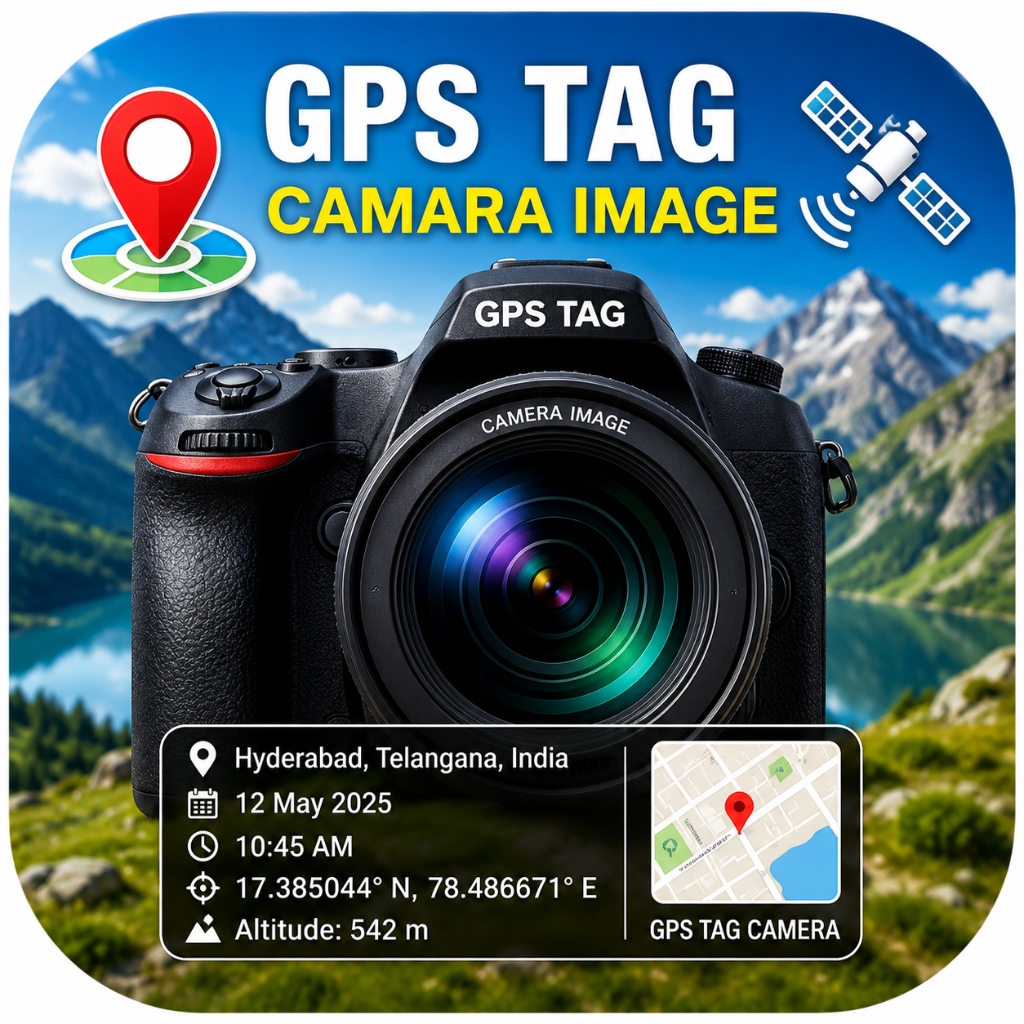
GPS Map Camera Stamp – User Guide
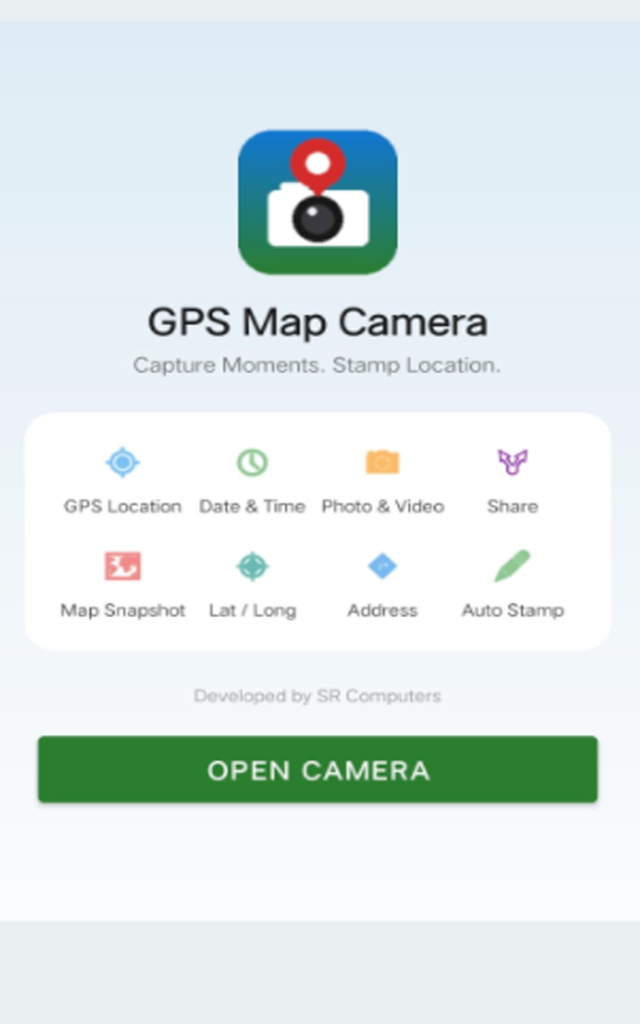
Getting Started
GPS Map Camera Stamp is an Android camera application developed by SR Computers. Depending on the features and permissions available on your mobile device, the application can add useful information such as location coordinates, street address, date, time, and map stamps directly to your captured photographs.
This user guide explains how to prepare your device, capture stamped photos, customize stamp templates, save photos, and share them with others.
Before You Take Your First Photo
Before using GPS Map Camera Stamp for photo stamping, verify these initial preparations on your device:
- Battery Power: Ensure your phone has sufficient battery charge for camera and GPS operation.
- Location Setting: Turn ON Location / GPS in your phone's quick settings panel if you want location details stamped on your photos.
- Camera Permission: Allow Camera permission when prompted so the app can display the camera preview and take photos.
- Photos & Storage Permission: Allow required storage/media permissions so the app can save captured photos to your phone gallery.
- Network Connection: If you are using reverse-geocoding features to display a readable street address or map thumbnail, ensure your device has a working internet or cellular data connection.
Taking a Photo
Follow these step-by-step instructions to capture a location-stamped photograph:
- Open GPS Map Camera Stamp on your phone.
- If you require location stamping, wait a brief moment for your device's location services to locate a GPS signal.
- Check the live information overlay shown on the camera viewfinder screen.
- Choose your preferred stamp style or template from the screen options.
- Point the camera lens at your subject.
- Tap the shutter button (or press your physical phone volume button).
- Check the saved photograph in the preview window or your device gallery.
Understanding the Information on the Stamp
Depending on the selected stamp design and the data available from your device, the stamp overlay may display:
- Latitude & Longitude: Geographic coordinates recorded by your phone's GPS receiver.
- Address: Readable street name, area, and city generated from coordinates when location and network data are available.
- Date & Time: The system date and time when the photograph was taken.
- Map Preview: An optional small map graphic showing your general location.
GPS Accuracy
The location shown by the app is based on information available from your device and its location services. GPS accuracy can vary depending on several physical and technical factors, including:
- Phone hardware and GPS chipset quality
- Direct line-of-sight satellite visibility
- Surrounding tall buildings or concrete walls
- Indoor locations or underground basements
- Dense tree canopy or heavy atmospheric weather
- Mobile network and Wi-Fi assistance availability
Changing the Stamp Style
You can customize how the stamp overlay appears on your photos:
- Templates: Switch between Classic, Minimal, and Dark mode templates.
- Position: Place the stamp overlay at the top or bottom of the photo frame.
- Opacity: Adjust stamp background transparency using the built-in slider.
Saving, Viewing & Sharing Photos
Saving Photos
Photos captured with GPS Map Camera Stamp are saved directly to your phone's local storage gallery. The exact folder path depends on your Android version and device storage settings.
Viewing Photos
You can view your stamped photos directly using the app's built-in preview screen/gallery or through your phone's standard Photos or Gallery application.
Sharing Photos
Tap the Share icon on the preview screen to send photos through installed Android applications such as WhatsApp, Email, Google Drive, Telegram, or other sharing apps. Note that third-party messaging services handle shared files according to their own compression and privacy practices.
Front and Rear Camera Switch
You can switch between your device's rear camera and front selfie camera by tapping the camera flip icon on the camera screen.
App Permissions Overview
- Camera: Used to display the camera preview and capture photos.
- Location: Used to obtain GPS coordinates and address details for photo stamps.
- Photos / Storage: Used to save stamped photographs to your device.
Need Troubleshooting Help?
Check our detailed troubleshooting guide for solutions to common issues.
help View Troubleshooting Guide