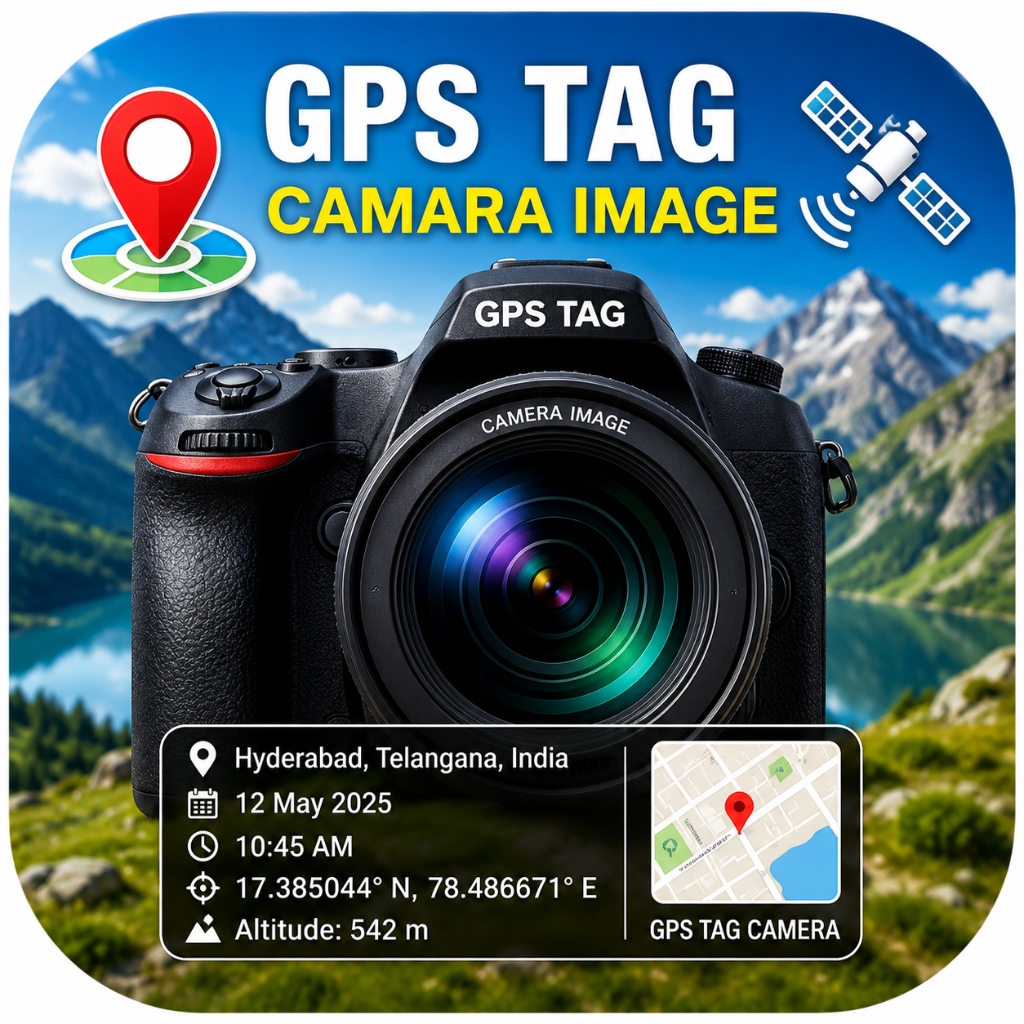
GPS Camera Location on Photos: App Download, Login, Timestamp & PC Setup Guide
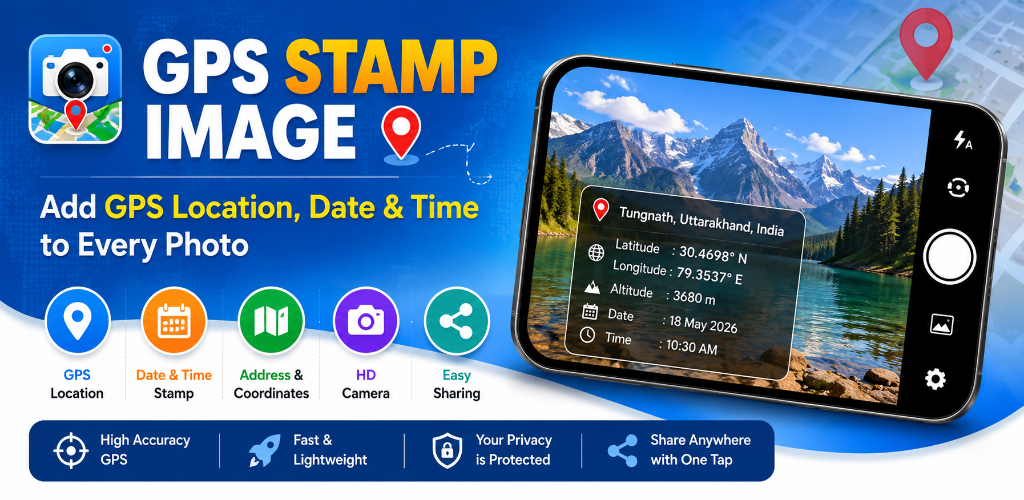
Adding verified gps camera location on photos has become standard practice for engineering field audits, real estate appraisals, land surveying, and official progress logs. The gpscamra app developed by SR Computers allows users to capture real-time satellite coordinates, reverse-geocoded physical addresses, and verified timestamps directly on every image.
In this guide, we cover everything you need to know regarding gpscamra download, gps map camera install, gpscamra login policies, timestamp customization, and how to use gps map camera for PC.
1. How to Perform GPS Map Camera Download & Install
To perform a safe gps map camera install on your mobile phone, always use official verified app stores:
- Open the Google Play Store on your Android phone.
- Search for
com.srcomputersndk.gpsmapcameraor click Official Play Store Download Link. - Tap Install to complete the official gpscamra download.
- Grant camera and location permissions when prompted to enable real-time gps camera location on photos.
2. Understanding GPSCamra Login & Account Policy
Many users search for gpscamra login instructions. Unlike cloud apps that force users to register or create accounts, GPS Map Camera by SR Computers requires NO login or account creation. Your photos, location logs, and camera settings are processed 100% locally on your smartphone to ensure absolute privacy and immediate offline camera availability.
3. Customizing GPS Map Camera - Timestamp Settings
Configuring a tamper-evident gps map camera - timestamp overlay is simple inside the app settings:
- Open the app dashboard and tap Date & Time.
- Choose your preferred date format (
DD/MM/YYYY,YYYY-MM-DD, orDay, DD Month YYYY). - Enable automatic GMT/UTC offset (e.g.
GMT +05:30) to ensure verified timestamp logging for official audit compliance. - Select 12-hour AM/PM or 24-hour military clock styles.
4. How to Use GPS Map Camera for PC (Windows)
If you need to use gps map camera for PC or inspect geotagged photos on a desktop screen:
- Viewing Geotagged Photos on PC: Transfer stamped photos captured on your mobile phone to your Windows PC via USB or Google Drive. Windows Photos automatically reads embedded EXIF location metadata.
- Running the App on Windows PC: You can run the Android gpscamra app natively on PC using Android emulators such as BlueStacks or Windows Subsystem for Android (WSA), using your PC webcam for capturing location-stamped photos.
Download GPS Map Camera Official App
Get verified location stamps and timestamps on your photos today.
android Download Official App on Play Store