How to Customize GPS Stamp Templates, Position & Opacity in Photos
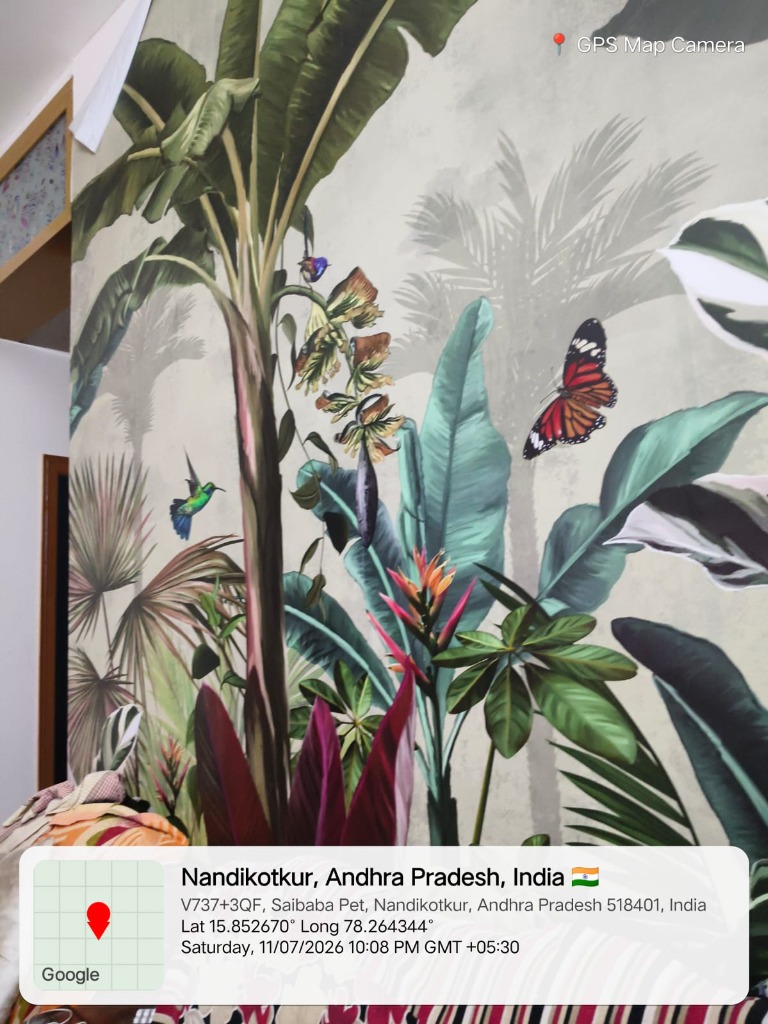
The hallmark of a great geotag camera app is the ability to present metadata clearly without obscuring the core subjects in your photo. GPS Map Camera allows complete control over stamp placement, template styles, and transparency settings.
GPS Stamp Customization Features
1. Live Viewfinder Location Preview
Unlike apps that add stamps post-capture, GPS Map Camera shows your live reverse-geocoded address, coordinates, and map preview right on the screen before you even hit the shutter button.
2. Reverse-Geocoded Address with Country Flag Emojis
Coordinates are automatically converted into readable physical addresses including locality, district, state, country, and national flag emojis (e.g., 🇮🇳 for India, 🇦🇪 for UAE).
3. Stamp Templates: Classic, Minimal & Dark Glass
Select from 3 professional stamp templates:
- Classic Glass: Features a white/glass card with a prominent Google Map thumbnail and full coordinate details.
- Minimalist Line: A lightweight single-line stamp for clean landscape photos.
- Dark Mode Card: A sleek dark glass backdrop ideal for bright daylight scenes.
4. Stamp Position & Opacity Slider
Easily switch stamp position between Top and Bottom frame corners, and adjust the background card opacity slider from 0% (fully transparent) to 100% (solid card).
5. Automatic Hard Baking
Once captured, the stamp is automatically baked directly into the JPEG file—no extra manual editing required!